The challenge to change Parameter CompanyName in Altium Designer
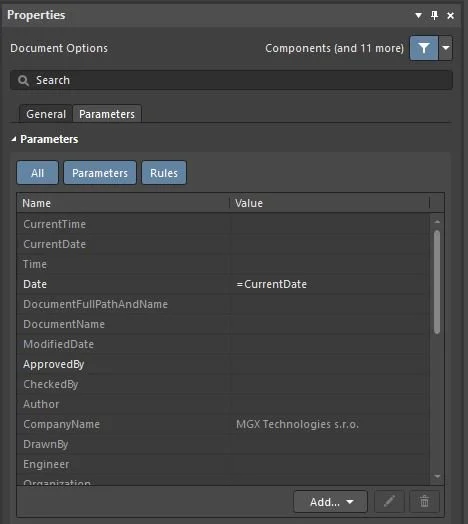
In Altium Designer it is not straight-forward to change Schematic Parameter CompanyName. It is not possible to change this Parameter directly in the Parameter list. It is not even possible to delete this Parameter as this Parameter is locked.
The trick how to change Parameter CompanyName in Altium Designer
This guide shows how to change the Parameter CompanyName in Altium Designer Schematic.
Open the desired Schematic document or Schematic Template you wish to modify.
In Schematic, click Tools >> Parameter manager,
In popup window Parameter Editor Options, make sure that only checkbox Documents is selected:
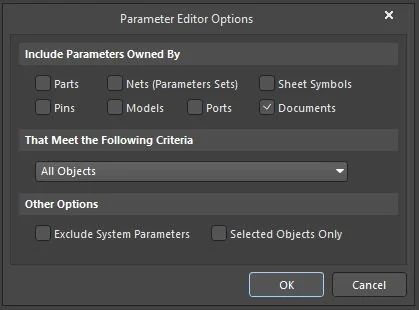
Click button OK,
The next popup window with document Parameter set appears:

In the list of Documents, locate desired Parameter CompanyName and change it to desired value:

Click button Accept Changes (Create ECO),
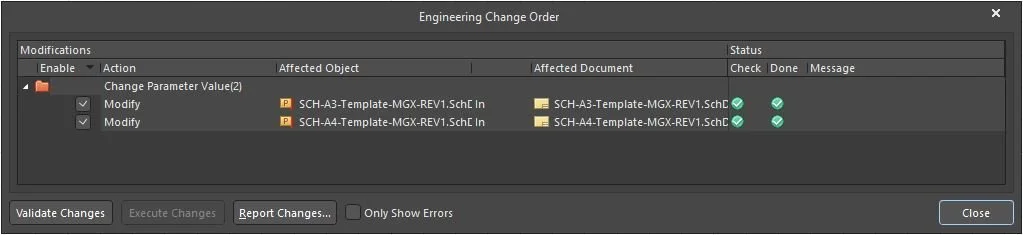
Next popup window Engineering Change Order appears:
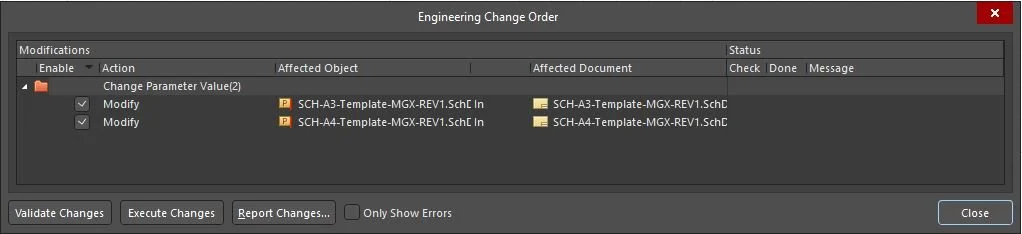
Click button Validate Changes,
Click button Execute Changes,
Click button Close:
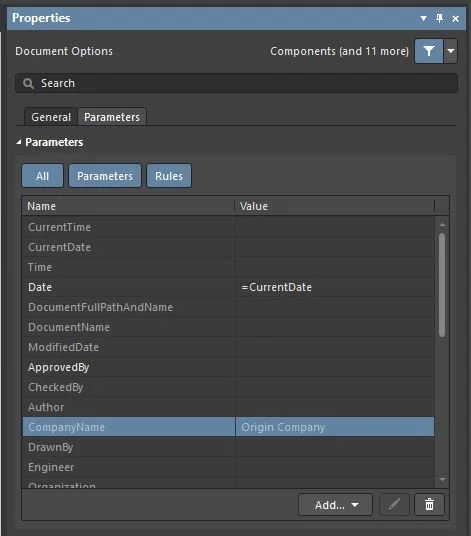
After previous change is performed, Parameter CompanyName is changed as desired: